



LFPS produces multi-band GeoTIFFs which are multi-band floating-point raster datasets. Because raster attribute tables can only be built for single-band integer raster datasets, multi-band GeoTIFFs cannot have an attribute table joined. To remedy this, you can export individual bands from the LFPS output and join with an attribute table.
LF Attribute Tables are in the Comma Separated Value (CSV) format. To find the appropriate .csv file, go to the product pages and select the Comma Separated Value (CSV) link. Download the .csv file(s) and then follow the steps detailed in the instructions below:
Note: Since these are multi-band GeoTIFFs, drag-and-drop into ArcPro will not work. Users must use the recommended process of clicking on "Add Data" to bring their GeoTIFF into ArcPro.
ArcMap/ArcGIS Pro
- Click the Add Data dialog box (this is different for ArcMap vs ArcGIS Pro)
- Click on the file name of the LFPS GeoTIFF (make sure you expand the zip file first)
- Select and add the individual band(s) to which you want to join attributes
- Export each band as format TIFF
- In the Layer Properties menu, change the symbology in each band to Unique Values and select Yes to build a raster attribute table
- Join the attributes based on Value and the relevant attribute table (.csv) table
- Export the raster again to make the join permanent
As shown in the images below, the categorial information is missing from the multi-band GeoTIFF downloaded from LFPS, but after joining the attribute table to the individual exported raster, the attribute information is present.
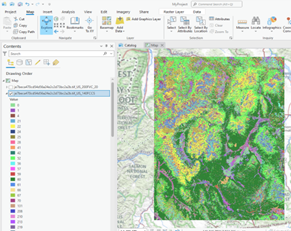
LFPS download legend prior to
split of GeoTIFF bands
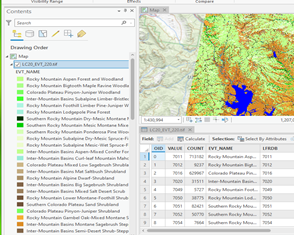
LFPS download legend after
joining the attribute table